
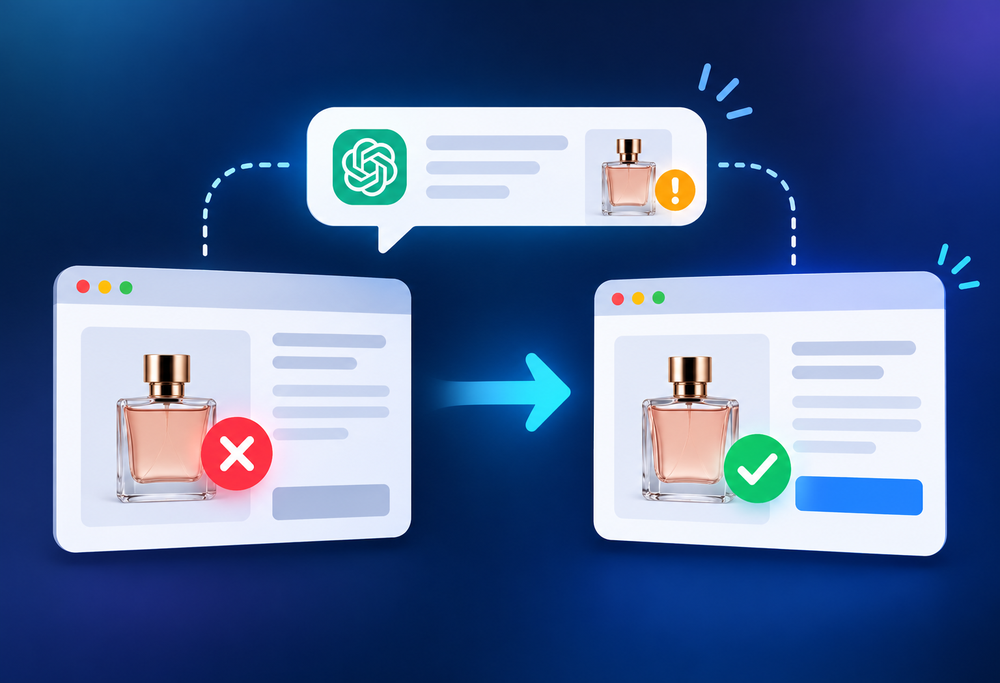
Shopify web development usually focuses on what you build and launch: themes, collections, checkout, apps. Far less attention goes to what happens when a product stops being sold. A shopper asks an assistant for a gift idea, gets one of your products, and lands on a page that says “not found”. Or worse, they buy something you can no longer ship. The product left your catalogue. It never left the answers.
TL;DR
- Retired Shopify products can keep showing in search results, feeds and AI shopping answers long after you stop selling them.
- There are five kinds of retired product, and each needs a different action: keep, redirect or remove.
- Good Shopify web development makes the page, the structured data and the product feed all say the same thing about availability.
- Add a product lifecycle step to your store routine, and test what assistants say about your retired items.
What Happens to Retired Products in Shopify Web Development
Every Shopify web development project meets this eventually, because stores change constantly. Lines are discontinued, seasonal items go away, models are replaced and variants are merged. Each change leaves traces: an old page that search engines have indexed, an entry in a product feed, a mention on a comparison site, a listing in a marketplace.
Classic SEO advice covers part of this. Redirect or keep the page, mark it out of stock, don’t leave a pile of 404 errors. That advice still holds. What’s new is that shopping assistants and AI answers draw on the same signals, and they can repeat a stale product or a stale status with confidence. I can’t tell you how often a particular assistant does it, and nobody outside those companies can. What I can say is that fixing the signals costs little and protects you either way. That is why this belongs in any Shopify web development brief.
Five Kinds of Retired Product in Shopify Web Development
Treating every retired product the same way is the most common mistake. Sort them first.
1. Discontinued with no replacement
The product is gone for good and nothing similar exists. If the page has earned links or traffic, keep it live for a while with a clear “no longer available” message and links to related products. If it has little value, redirect it to the closest collection, or let it return a proper 404 or 410.
2. Temporarily out of stock
The product is coming back. Keep the page live, mark it out of stock clearly, and offer a back-in-stock sign-up. Don’t redirect it, or you lose the page just as it’s about to be useful again.
3. Seasonal items
Christmas ornaments in March, sunscreen in December. Keep the page live all year if you can, with a note on when it returns. Search engines and shoppers both learn to expect it.
4. Replaced by a newer model
The old page should point shoppers to the new one. A 301 redirect to the replacement works well when the products are close. When they’re different enough that a redirect would surprise people, keep the old page with a visible “replaced by” link.
5. Merged or removed variants
Retiring one colour or size shouldn’t break the whole product. Remove the variant, check that the product page still reads correctly, and make sure feeds and structured data no longer list it.
Shopify Web Development Rules: Keep, Redirect or Remove
A few simple Shopify web development rules keep you out of trouble.
- Does a close replacement exist? Redirect to it, or link to it from the old page.
- Will it come back? Keep the page and mark the status honestly.
- Does the page have real links or traffic? Keep it for a while, then reassess.
- Is it truly gone, with no value? Remove it and let it return a 404 or 410.
- Never redirect everything to the homepage. It’s lazy, and shoppers and search engines can treat an irrelevant redirect like a missing page.
Archiving or deleting a product in Shopify usually makes its page return a 404, so decide on a redirect before you archive, not after. Shopify’s help guide to URL redirects covers how to set them up, one at a time or in bulk with a CSV.
A Retired Product Scenario: The Winter Jacket
Here’s an illustrative case, not a real client. A small outdoor shop retires its winter jacket in March and replaces it with a new model in September. The old product is archived without a redirect. The new one goes live with a new URL.
Over the next months, three things happen. The old URL returns a 404 for anyone who still has it bookmarked. A comparison site keeps listing the old jacket as in stock. And a shopping answer recommends the old model because that is the page with the most history. The shop has done nothing unusual. It simply never planned the handover.
A better Shopify web development routine would have redirected the old page to the new jacket, updated the feed on the same day and asked the comparison site to correct its listing. That’s an hour of work, once.
How Availability Reaches AI Shopping Answers
Availability information travels by several routes, and a mismatch between any two of them is how stale answers happen.
- The product page itself. The visible status, price and add-to-cart button.
- Structured data. Product markup tells machines about price and availability. Schema.org defines values such as in stock, out of stock and discontinued, and Google’s product structured data documentation lists the ones Google reads.
- Product feeds. Feeds sent to shopping channels carry their own availability field. If the feed says in stock and the page says gone, someone loses trust.
- Third-party copies. Comparison sites, marketplaces and affiliate pages that copied your listing.
The fix is to make these agree. When a product changes status, update the page, the markup and the feed on the same day. That’s the Freshness and Consistency work in our AI Trust Stack, applied to a product catalogue.
Shopify Web Development Cheat Sheet: Status, Action and Fix
Use this table when you retire or pause a product.
| Product status | Right action | Shopify fix |
|---|---|---|
| Discontinued, no replacement | Keep briefly, then redirect or remove | Notice on page, link to collection, 301 or 410 later |
| Temporarily out of stock | Keep the page live | Out-of-stock label, back-in-stock sign-up, feed marked unavailable |
| Seasonal | Keep all year | Return-date note, hide from main collections off-season |
| Replaced by newer model | Redirect or point to successor | 301 redirect, or a “replaced by” link in the page |
| Variant removed | Update, don’t delete the product | Delete variant, check feed and markup for stale options |
The Shopify Web Development Build: Notices, Redirects and Data
Most of this is theme and setup work, and a good Shopify web development team can do it without rebuilding anything.
- A status notice on the product template. A small block that changes with the product’s state: available, out of stock, discontinued or replaced.
- A successor field. A product field that holds a link to the replacement, so the old page can point to it automatically.
- A redirect routine. A short checklist and, for bigger catalogues, a CSV of old and new URLs.
- Markup that follows the real status. Structured data that updates when availability changes, not a fixed value hard-coded into the theme.
- Feed settings. Availability fields that read from the same source as the page.
None of this is exotic Shopify web development. It just needs someone to design it as a system rather than fix each product by hand, which is where a Shopify web development team earns its keep.
Don’t Break Your Product Feed
A redirect that helps shoppers can still hurt a feed. If you redirect a retired product’s page but leave it in the feed, the shopping channel may find a page that doesn’t match the listing and flag it. Remove or mark retired products in the feed at the same time as you redirect them, and check for warnings in the channel afterwards.
Good Shopify web development treats the feed as a second storefront. It deserves the same care as the one customers browse.
A 20-Minute Shopify Web Development Check for Retired Products
You can find the worst problems quickly. Use a private window and log out of your AI accounts if you can, because logged-in assistants may remember earlier chats.
- List the last ten products you retired or paused.
- Visit each URL. Note whether it loads, redirects or returns an error, and whether the status is clear.
- Search each product name in Google. See what appears and what the snippet says.
- Ask ChatGPT, Perplexity, Gemini and Google’s AI Overviews to recommend that kind of product in your category. Note whether any retired item appears.
- Check your shopping channel for warnings about page or availability mismatches.
- Fix the three worst, then repeat the AI check after a few weeks.
Answers vary between runs, so look for a pattern, not a single result. For a wider look at how specialists approach this, see our overview of AEO optimization in 2026.
Common Shopify Web Development Mistakes With Retired Products
- Deleting first, thinking later. Once the page returns a 404, you’ve lost the chance to redirect it cleanly.
- Redirecting everything to the homepage. It confuses shoppers and wastes the old page’s value.
- Forgetting the feed. The page is fixed, the listing still says in stock.
- Hard-coding availability in the theme. The markup then says in stock forever.
- Leaving old promos on retired pages. Prices and offers linger the longest.
- Never checking. Most stores never test what assistants say about their old products.
Make Product Lifecycle Part of Your Shopify Web Development Routine
The cleanest fix is a habit. Add a retire step to your product checklist: decide keep, redirect or remove, set the redirect, update the feed and note the date. Review the retired list once a quarter.
This pairs naturally with campaign close-out, which is the same discipline applied to promotions. If you’d like help setting both up, Shopify web development services and our digital marketing services can build the routine into your store, and an AI SEO agency can test what assistants currently say. For more on how agencies approach AI visibility, our companion blog on AI SEO professionals is a useful read.
Key Takeaways on Shopify Web Development and Retired Products
- Shopify web development should plan for retired products, which leave traces in pages, markup, feeds and third-party copies.
- Sort retired products into five kinds and handle each one differently.
- Never redirect everything to the homepage, and decide on a redirect before you archive.
- Make the page, structured data and feed agree on availability the same day.
- Test what assistants say about your retired items every quarter.
Frequently Asked Questions
What is Shopify web development?
Shopify web development is the work of designing, building and maintaining a Shopify store: themes, custom features, apps, checkout, product data and performance, plus the routines that keep it accurate.
Should I delete discontinued Shopify products?
Not straight away. Check whether the page has links or traffic, and whether a replacement exists. Redirect or keep the page first, and remove it only when it has no value.
Should I redirect an out-of-stock product?
No, if it’s coming back. Keep the page live and mark it out of stock. Redirect only when the product is gone for good and a close replacement exists.
Can AI shopping answers show products I no longer sell?
They can, because they draw on pages, markup, feeds and third-party copies that may still list the product. Fixing those sources and testing in a private window is the practical approach in Shopify web development.
What does a Shopify web development team do here?
It builds the status notices, the successor links, the redirect routine and the availability markup, and it keeps the page and the feed in agreement.
Get Your Shopify Catalogue Checked
Our Shopify web development team reviews retired products, redirects, markup and feeds, then fix what could be sending shoppers to dead ends.
